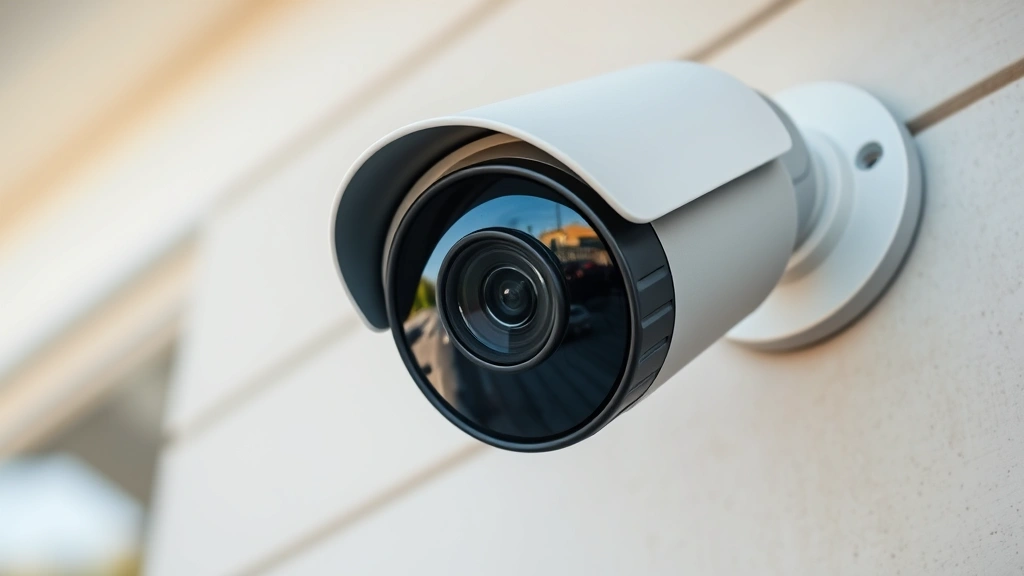
Annke Camera Safety: Pro Tips for Secure Setup
Annke security cameras provide reliable surveillance solutions for homes and businesses, but like any connected device, they require proper security configuration to protect your privacy and data. Misconfigured systems expose footage, credentials, and network access to unauthorized users. This comprehensive guide walks you through essential security practices for Annke camera deployments, from initial setup through ongoing maintenance, ensuring your surveillance infrastructure remains secure against evolving cyber threats.
Security breaches involving surveillance systems have increased significantly, with attackers targeting poorly configured cameras as entry points into residential and commercial networks. Annke devices, while generally well-built, demand attention to authentication, encryption, and network isolation. Following these pro tips will dramatically reduce your vulnerability to unauthorized access, data interception, and remote exploitation.
Change Default Credentials Immediately
The most critical step in securing your Annke security camera is replacing factory-default usernames and passwords. Manufacturers publish default credentials in documentation and online databases, making devices vulnerable within seconds of connection to your network. Attackers use automated scanning tools to identify devices using standard credentials, gaining instant administrative access.
When setting up your Annke camera, access the web interface (typically at the device’s IP address) and navigate to user settings. Create a strong password using a combination of uppercase letters, lowercase letters, numbers, and special characters—minimum 16 characters. Avoid dictionary words, sequential numbers, or personal information. Consider using a password manager to generate and store complex credentials securely.
For systems with multiple cameras, use unique passwords for each device rather than a single shared password. This principle of credential isolation limits damage if one password is compromised. Document these credentials in an encrypted vault separate from the devices themselves. Never store passwords in plain text files or email.
Additionally, rename the default administrator account if your Annke model allows it. Attackers commonly target accounts named “admin” or “root.” Custom usernames add a layer of obscurity that forces attackers to guess both username and password rather than just the password.
Enable Two-Factor Authentication
Two-factor authentication (2FA) requires a second verification method beyond your password, significantly strengthening account security. If Annke’s web interface or mobile app supports 2FA, enable it immediately. This feature typically uses time-based one-time passwords (TOTP) generated by authenticator apps like Google Authenticator or Authy.
When 2FA is enabled, even if an attacker obtains your password through phishing or data breaches, they cannot access your camera system without the second factor. The Annke mobile app and web portal should offer 2FA setup in account settings. Scan the QR code with your authenticator app and save backup codes in a secure location—these codes allow account recovery if you lose access to your authenticator device.
Enable 2FA for any cloud services your Annke cameras use, such as cloud storage or remote viewing platforms. Many breaches occur through cloud accounts rather than the devices themselves. Treat your cloud credentials with the same security rigor as your local camera passwords.
Update Firmware Regularly
Firmware updates patch security vulnerabilities discovered after device release. Manufacturers like Annke release updates addressing known exploits that attackers actively target. Delaying updates leaves your cameras vulnerable to publicly disclosed attacks.
Check the Annke support website monthly for firmware releases. Most cameras allow automatic updates through the web interface—enable this feature if available. If automatic updates aren’t supported, manually apply updates during maintenance windows when camera downtime is acceptable.
Before updating, back up your camera configuration. Connect to your camera’s web interface, navigate to system settings, and export configuration files. In rare cases, updates cause compatibility issues; having a backup allows you to restore previous settings quickly.
Subscribe to security advisories from CISA (Cybersecurity and Infrastructure Security Agency) to receive notifications about vulnerabilities affecting surveillance equipment. CISA publishes alerts on emerging threats targeting IoT devices, including security cameras.

Configure Network Segmentation
Network segmentation isolates your cameras on a separate network segment, limiting potential damage if cameras are compromised. Attackers who breach a camera cannot easily pivot to other devices like computers, phones, or smart home systems on your primary network.
If your router supports it, create a dedicated guest network or VLAN (Virtual Local Area Network) for surveillance equipment. Place all Annke cameras on this isolated segment. Configure firewall rules to prevent cameras from initiating connections to your main network while allowing your main network to access cameras for viewing and management.
For advanced setups, use a managed switch to create VLANs with strict access control lists (ACLs). This enterprise-grade approach prevents even sophisticated lateral movement attacks. Most consumer routers support basic guest networks, which provide reasonable isolation for home surveillance systems.
Ensure your isolated camera network still has internet access for cloud services and remote viewing if desired, but restrict internal communication between the camera network and your personal devices. This balance maintains functionality while enhancing security.
Secure Your RTSP Stream
RTSP (Real Time Streaming Protocol) is a common protocol for streaming video from Annke cameras. Unencrypted RTSP streams transmit video over your network in plain text, allowing anyone on your network to intercept and view footage without authentication.
Access your camera’s advanced settings and enable RTSP over SSL/TLS (RTSPS). This encryption protects video streams from interception. If your camera doesn’t support RTSPS, use a VPN tunnel for any remote access to the camera system.
Disable RTSP entirely if you don’t use it for third-party integrations or remote viewing. Each enabled protocol increases your attack surface. Only activate features you actively use. Document which features are enabled and why, making it easier to identify unnecessary protocols during security audits.
For remote viewing, use the official Annke app or web interface rather than exposing RTSP ports directly to the internet. The official interfaces typically include better authentication and encryption than raw RTSP access. Avoid port-forwarding camera ports to the internet; instead, use the manufacturer’s cloud services or VPN access for remote viewing.
Disable Unnecessary Features
Annke cameras often include features you may not need—cloud storage, cloud sharing, remote access, or mobile notifications. Each enabled feature represents potential security risk. Disable services you don’t use.
Review your camera settings and disable cloud upload if you prefer local storage only. If you don’t need remote access, disable remote viewing features. Disabling unnecessary features reduces the number of connections your camera makes to external servers and limits potential attack vectors.
Some cameras include UPnP (Universal Plug and Play) for automatic port mapping. Disable UPnP and configure port forwarding manually if remote access is necessary. UPnP can be exploited to expose internal services to the internet without user knowledge.
Check for debugging or telnet access ports that manufacturers sometimes leave enabled for troubleshooting. Disable these backdoor-like features if your camera supports it. Review the manual or contact Annke support to identify all available services and disable those you don’t require.
Monitor Access Logs
Regular log review helps detect unauthorized access attempts or suspicious activity. Most Annke cameras maintain access logs showing login attempts, configuration changes, and remote connections. Review these logs weekly for anomalies.
Look for failed login attempts from unfamiliar IP addresses, unexpected configuration changes, or access during times when you typically don’t view the camera. Failed login spikes often indicate brute-force attacks. Successful logins from unknown locations warrant immediate investigation.
Enable alerts for failed login attempts if your camera supports this feature. The mobile app or web interface should notify you of suspicious activity. Respond quickly to alerts by changing passwords and reviewing recent access.
Export and archive logs periodically. In case of security incidents, historical logs provide evidence of when and how compromise occurred. Store archived logs separately from the camera system itself, on a secure backup drive or cloud storage with strong encryption.
Consider implementing a Security Information and Event Management (SIEM) system for enterprise deployments with multiple cameras. SIEM solutions aggregate logs from all cameras, making pattern detection and threat identification easier than reviewing individual device logs.

Additional Security Hardening Measures
Beyond the core security practices, additional hardening measures provide defense-in-depth protection. Configure your camera to use a static IP address rather than DHCP, preventing IP address changes that might disrupt access or create confusion during troubleshooting.
Enable HTTPS for web interface access. Most modern Annke cameras support HTTPS by default, but verify it’s enabled in security settings. HTTPS encrypts communication between your browser and the camera, protecting credentials and data from interception on your local network.
Implement strong network encryption using WPA3 (or WPA2 if WPA3 isn’t available) for your WiFi network. Weak WiFi encryption allows attackers to intercept camera credentials and footage. Ensure your router uses a strong WiFi password distinct from your network name (SSID).
For wired connections, use a managed switch with port security features. Port security restricts which MAC addresses can connect to specific ports, preventing unauthorized devices from connecting to camera network segments.
Test your security configuration periodically by attempting to access your camera from outside your network using incorrect credentials. Verify that access is properly denied. If possible, use network scanning tools like Nmap to identify open ports on your camera and verify only necessary ports are accessible.
Establish a maintenance schedule for your Annke camera security. Quarterly reviews of firmware versions, access logs, and enabled features help catch security drift before it becomes problematic. Document your security configuration and maintain an inventory of all cameras, their locations, and their purposes.
Consider implementing IP whitelisting if your camera supports it. This restricts access to the camera’s web interface only from specific IP addresses you control, dramatically reducing exposure to remote attacks. Whitelist your primary network, your mobile device’s IP (if static), and your VPN server if using remote access.
FAQ
What is the default password for Annke cameras?
Annke cameras typically ship with default credentials like username “admin” and password “12345” or similar simple combinations. However, these vary by model. Check your camera’s manual or Annke’s support documentation for your specific model. Regardless of the default, change these credentials immediately upon setup—never rely on default passwords for production security.
Can I access my Annke camera remotely safely?
Yes, but only through secure methods. Use the official Annke app or web interface with strong authentication rather than exposing RTSP ports directly to the internet. Enable 2FA on your account. Use a VPN to encrypt remote connections. Avoid port-forwarding camera ports; instead, use the manufacturer’s cloud services designed for secure remote access.
How often should I update my Annke camera firmware?
Check for updates monthly and apply them within two weeks of release. Critical security updates addressing active exploits should be applied immediately. Enable automatic updates if your camera supports this feature, ensuring you receive patches without manual intervention.
Is cloud storage secure for Annke camera footage?
Cloud storage is secure if you use strong authentication and encryption. Enable 2FA on your cloud account. Use end-to-end encryption options if Annke offers them. Review the privacy policy to understand how footage is stored and accessed. For highly sensitive footage, consider local storage only on encrypted hard drives rather than cloud services.
What should I do if I suspect my Annke camera was hacked?
Immediately change all passwords for the camera and associated cloud accounts. Disconnect the camera from your network and review access logs for unauthorized activity. If the breach occurred, assume footage may have been accessed; review recordings for the breach window. Update camera firmware to the latest version before reconnecting. Consider enabling network monitoring to detect future suspicious activity. Contact Annke support for additional guidance if compromise is confirmed.
Do I need a VPN for viewing my Annke camera remotely?
A VPN is not strictly necessary if you use the official Annke app with strong authentication and 2FA, but it provides additional encryption and protection. Using a VPN for remote access is recommended for maximum security, especially on public WiFi networks. The VPN encrypts all traffic between your device and your home network, protecting credentials and footage from interception.
Can network segmentation impact camera functionality?
Proper network segmentation maintains full camera functionality while improving security. Cameras on isolated networks can still connect to the internet for cloud services and receive firmware updates. Configure firewall rules to allow cameras to initiate outbound connections while blocking inbound access from your main network. Your main network can still access cameras for viewing and management through properly configured firewall rules.
External Resources:


