
Is Your Chromebook Secure? Expert Browser Tips for Air Secure Browser Protection
Chromebooks have become increasingly popular for their simplicity, speed, and built-in security features. However, many users remain uncertain about whether these devices truly protect their sensitive data and online activities. The question of Chromebook security extends beyond the operating system itself—it encompasses browser configuration, extension management, and user behavior patterns that can either strengthen or compromise your digital safety.
Your Chromebook’s security posture depends heavily on how you configure and use your browser. While Chrome OS provides a solid foundation with automatic updates, sandboxing, and verified boot processes, understanding the nuances of browser security can mean the difference between a protected device and one vulnerable to sophisticated threats. This comprehensive guide explores essential security practices, configuration options, and expert recommendations to ensure your Chromebook remains a fortress against cyber threats.
The intersection of hardware security and browser behavior creates a unique ecosystem that requires specific attention. Whether you’re using your Chromebook for work, education, or personal browsing, implementing the security strategies outlined here will significantly reduce your attack surface and protect your digital identity.
Understanding Chromebook Security Architecture
Chromebooks operate on Chrome OS, a Linux-based operating system fundamentally designed with security as a core principle rather than an afterthought. Unlike traditional operating systems, Chrome OS implements multiple layers of protection that work together to create a resilient security model. The architecture includes verified boot, which ensures that your device hasn’t been tampered with during startup, and automatic updates that deploy security patches without user intervention.
The sandboxing technology built into Chrome OS isolates applications from the core system and from each other. This means that even if a malicious application or website attempts to exploit a vulnerability, it cannot directly access your files, settings, or other applications. This compartmentalization is one of the primary reasons Chromebooks have significantly lower malware infection rates compared to Windows or macOS devices.
Chrome’s security model also emphasizes the principle of least privilege, where applications and processes operate with the minimum permissions necessary to function. When you grant an extension permission to access certain data, Chrome OS restricts it to only that specific functionality. This granular control prevents rogue extensions from gaining unauthorized access to your browsing history, passwords, or personal files.
However, it’s important to understand that while Chrome OS provides robust foundational security, your browser configuration and user behavior significantly impact your overall security posture. The operating system cannot protect you from phishing attacks, malicious websites, or poorly chosen passwords. Therefore, combining Chromebook’s inherent security with informed browsing practices creates a comprehensive defense strategy.
The integration of Google’s threat intelligence into Chrome means that real-time protection against malicious sites happens automatically. When you attempt to visit a website known to distribute malware or conduct phishing campaigns, Chrome blocks access and displays a warning. This proactive approach leverages Google’s massive data collection from billions of browser users to identify threats faster than traditional antivirus software.

Essential Browser Configuration Settings
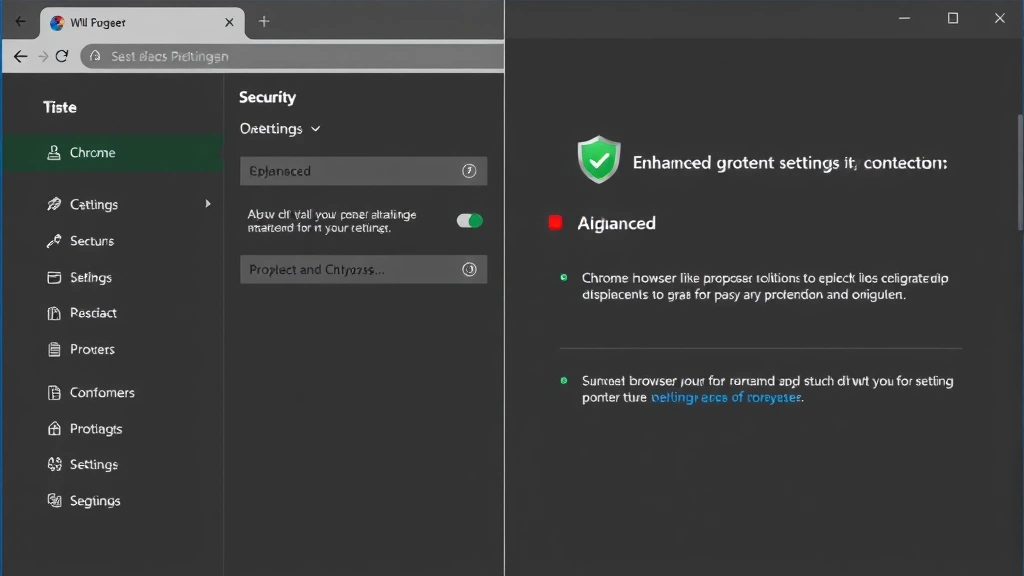
Optimizing your Chrome browser settings on your Chromebook is fundamental to maintaining security. The first step involves accessing Chrome’s security settings through the menu (three vertical dots) and navigating to Settings > Security and Privacy. Here, you’ll find several critical options that directly impact your protection level.
Enhanced Safe Browsing should be your default choice. While standard protection provides basic malware defense, Enhanced Safe Browsing offers real-time protection against dangerous sites, downloads, and extensions. This feature sends more detailed information to Google about your browsing activity to identify threats, making it significantly more effective for users who prioritize security over maximum privacy.
Your password management settings deserve careful attention. Chrome’s built-in password manager securely stores your credentials and can automatically fill login forms. However, ensure that the option to “Offer to save passwords” is enabled, and consider using a strong master password if your Chromebook is shared with others. For enhanced security, consider integrating a dedicated password manager like Bitwarden or 1Password through Chrome extensions, which provide additional encryption layers and cross-device synchronization.
Cookie and site permissions require thoughtful configuration. Navigate to Settings > Security and Privacy > Site settings to review permissions for camera, microphone, location, and clipboard access. Block these permissions by default and only grant them to specific trusted websites that genuinely require them. For cookies, select “Block third-party cookies” to prevent advertisers and tracking networks from following your browsing across multiple websites.
JavaScript execution presents an interesting security trade-off. While disabling JavaScript entirely breaks most modern websites, you can use extensions like uBlock Origin to selectively block JavaScript from specific domains. This approach provides granular control without sacrificing functionality on trusted sites.
Enable HTTPS-First Mode in Settings > Security and Privacy. This setting forces your browser to connect using encrypted HTTPS whenever possible, preventing attackers from intercepting your data on unsecured networks. When a site doesn’t support HTTPS, Chrome will warn you before proceeding, allowing you to make an informed decision about whether to continue.
Sync settings require careful consideration, particularly if your Chromebook is shared or if you value privacy. You can choose what data syncs across your Google account—passwords, bookmarks, autofill information, and browsing history. For maximum security on shared devices, consider disabling password sync and instead using a local password manager that doesn’t synchronize.
Managing Extensions and Third-Party Apps
Chrome extensions represent both a powerful tool and a significant security risk. While extensions can enhance functionality, they operate with extensive permissions and can access your browsing data, modify websites, or intercept network traffic. A malicious or compromised extension poses greater threat than most other attack vectors on Chromebooks.
Adopt a minimalist approach to extensions. Only install extensions from the official Chrome Web Store, and thoroughly research each one before installation. Read user reviews, check the developer’s history, and verify that the extension actually needs the permissions it requests. An extension that changes your new tab page shouldn’t need access to all your browsing data.
Regularly audit your installed extensions. Open Chrome’s extension management page (Settings > Extensions) and review each extension’s permissions. Remove any that you no longer actively use, as dormant extensions represent unnecessary risk. Pay particular attention to extensions with access to “all websites” or “all data,” as these pose the greatest potential threat.
Be skeptical of free extensions offering premium functionality. Many malicious extensions use this model to distribute adware, redirect your searches, or collect browsing data. If a tool provides significant value, the developers typically have legitimate monetization strategies. Free extensions with thousands of downloads but no clear revenue model warrant additional scrutiny.
Consider using CISA’s guidelines on browser extension security to evaluate questionable extensions. CISA (Cybersecurity and Infrastructure Security Agency) provides evidence-based recommendations for identifying potentially malicious software.
For advanced users, consider using separate Chrome profiles for different purposes. One profile might contain work-related extensions and be used exclusively for professional tasks, while another profile contains entertainment extensions and personal browsing. This compartmentalization limits the damage if one profile becomes compromised.
Android apps on Chromebooks present additional considerations. While Google Play provides security scanning, the same extension caution applies. Only install apps from reputable developers, review permissions carefully, and remove apps that request excessive access to your files or contacts.
Network Security and Safe Browsing Practices
Your Chromebook’s security extends beyond the device itself to the networks you connect with. Public Wi-Fi networks, while convenient, expose your traffic to interception unless you take protective measures. Virtual Private Networks (VPNs) encrypt all your internet traffic, preventing network administrators and attackers from viewing your browsing activity or intercepting sensitive data.
When selecting a VPN, choose providers with transparent privacy policies and verified security audits. Free VPNs often monetize through data collection, defeating the purpose of using a VPN. Reputable options include ProtonVPN, Mullvad, and IVPN, each offering strong encryption and no-logging policies.
Two-factor authentication (2FA) represents one of the most effective security measures available. Enable 2FA on your Google account and any other critical accounts you access through your Chromebook. While passwords can be compromised through phishing or data breaches, 2FA prevents unauthorized access even if attackers obtain your password. Use authenticator apps like Google Authenticator or Authy rather than SMS-based codes, which can be intercepted through SIM swapping attacks.
Phishing attacks remain the leading cause of account compromise. Train yourself to recognize phishing indicators: urgent language, requests for passwords, suspicious sender addresses, and links that don’t match the displayed text. Hover over links before clicking to verify they lead to legitimate websites. If you’re unsure about an email, contact the organization directly through their official website rather than using contact information from the email.
Your browsing habits significantly impact security. Avoid visiting suspicious websites, downloading files from untrusted sources, or clicking links in unsolicited emails or messages. These seemingly minor decisions collectively determine whether your Chromebook remains secure. The best security tools cannot protect you from deliberately visiting malicious websites or trusting unverified sources.
When using entertainment streaming services or other web applications, verify you’re visiting legitimate domains. Attackers often create lookalike websites that closely resemble popular services. Always type the URL directly or use bookmarks rather than clicking links from search results or emails.
Advanced Protection Mechanisms
For users requiring enhanced security, several advanced techniques provide additional protection layers. Isolation browsing involves using separate browser profiles or even separate devices for high-risk activities like online banking. This approach ensures that if one profile becomes compromised, your financial accounts remain protected.
Consider enabling Site Isolation, a Chrome feature that isolates each website into its own process. This prevents a compromised website from accessing data from other sites you have open. Site Isolation is enabled by default in modern Chrome versions but can be verified in Settings > Security and Privacy > Advanced.
Hardware-backed security keys provide the strongest form of two-factor authentication. Physical security keys like YubiKeys or Google Titan are immune to phishing and cannot be intercepted remotely. If you handle sensitive information or have high-value accounts, security keys represent a worthwhile investment.
Regular security audits of your Chromebook involve checking for suspicious activity, reviewing installed apps and extensions, and verifying that security settings remain properly configured. Set a monthly reminder to audit your device, as settings can sometimes revert after updates or become misconfigured accidentally.
Consider consulting NIST cybersecurity guidelines for comprehensive security frameworks applicable to personal devices. NIST provides evidence-based recommendations developed through extensive research and collaboration with security experts.
Regular Maintenance and Updates
Chrome OS and Chrome browser updates deploy automatically, but understanding what these updates contain helps you appreciate their importance. Security updates patch discovered vulnerabilities before attackers can exploit them at scale. Zero-day exploits—vulnerabilities unknown to vendors—represent the most dangerous threat, but automatic updates minimize the window of exposure for known vulnerabilities.
Restart your Chromebook regularly to complete pending updates. While Chrome OS handles updates gracefully without the disruptions associated with Windows updates, restarting ensures all updates fully apply. A simple weekly restart maintains optimal security posture.
Monitor your Google Account security through myaccount.google.com. Review connected devices, recent security events, and app permissions. Google provides detailed information about login attempts, locations, and devices accessing your account. Suspicious activity warrants immediate password changes and review of connected apps.
Back up important data regularly using Google Drive, external storage, or cloud backup services. While Chromebooks have low malware infection rates, ransomware or accidental deletion can still compromise your files. Maintaining offline backups ensures you can recover from worst-case scenarios.
Stay informed about emerging threats through reputable cybersecurity sources. Security Affairs and Krebs on Security provide regular updates about new vulnerabilities, threat campaigns, and security best practices. Dedicating fifteen minutes weekly to security news helps you stay ahead of emerging threats.
If you’re interested in understanding the broader security landscape, explore how critical thinking applies across domains, including security evaluation. The same analytical skills used for media criticism apply to assessing security claims and identifying trustworthy information sources.
FAQ
Are Chromebooks truly more secure than Windows or Mac laptops?
Chromebooks implement architecture-level security advantages including verified boot, automatic updates, and aggressive sandboxing. These features significantly reduce malware infection rates. However, “more secure” depends on context—Windows and Mac offer greater customization for advanced users, while Chromebooks prioritize simplicity and automatic protection. For most users, Chromebooks provide superior out-of-the-box security.
Should I use a VPN on my Chromebook?
VPNs provide value primarily on public Wi-Fi networks where your traffic could be intercepted. On your home network with a secure router, VPN benefits are minimal unless you prioritize hiding your activity from your ISP or want protection against DNS-based tracking. Choose a reputable VPN provider if you decide to use one, avoiding free services that monetize through data collection.
What’s the difference between standard and enhanced safe browsing?
Standard Safe Browsing uses a local database of known malicious sites updated periodically. Enhanced Safe Browsing sends real-time information to Google about sites you visit, enabling faster threat detection. Enhanced Safe Browsing provides better protection but shares more information with Google. Choose based on your security versus privacy priorities.
Can I get a virus on my Chromebook?
Traditional viruses that self-replicate and spread are extremely rare on Chrome OS due to sandboxing and automatic updates. Malware exists, but its impact is typically limited to the infected application or browser profile. Ransomware and spyware pose greater threats than traditional viruses. Following security practices outlined here minimizes your risk to near-zero.
How often should I restart my Chromebook?
Restarting weekly ensures all security updates fully apply and clears temporary memory that might accumulate exploitable data. Chromebooks handle restarts quickly, making weekly restarts a practical security habit with minimal inconvenience.
Is Chrome’s password manager safe?
Chrome’s password manager encrypts passwords and stores them securely, but they’re encrypted with your Google account password. If someone gains access to your Google account, they could potentially access your saved passwords. For maximum security, use a dedicated password manager with additional encryption layers, or use Chrome’s password manager with a strong, unique Google account password and 2FA enabled.


