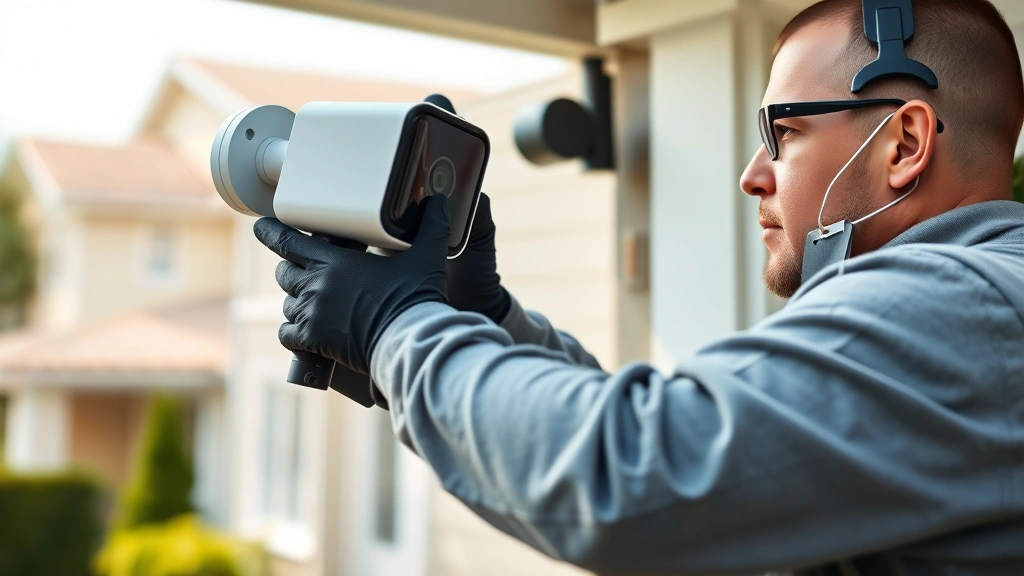
Secure Your Home: Arlo App Setup Guide
Home security has become a critical concern for modern homeowners, and the Arlo security camera app stands as one of the most popular solutions for protecting your property. Whether you’re monitoring your front door, backyard, or entire home, understanding how to properly set up and secure your Arlo system is essential. This comprehensive guide walks you through every step of the installation process while emphasizing the security best practices that keep your surveillance data protected from cyber threats.
The Arlo platform offers intuitive mobile access to your cameras, but improper setup can leave vulnerabilities in your home security infrastructure. Cybercriminals frequently target unsecured IoT devices like security cameras, using them as entry points into home networks or to conduct surveillance themselves. By following this guide, you’ll not only get your cameras operational but also implement the security measures that protect your privacy and your home network.
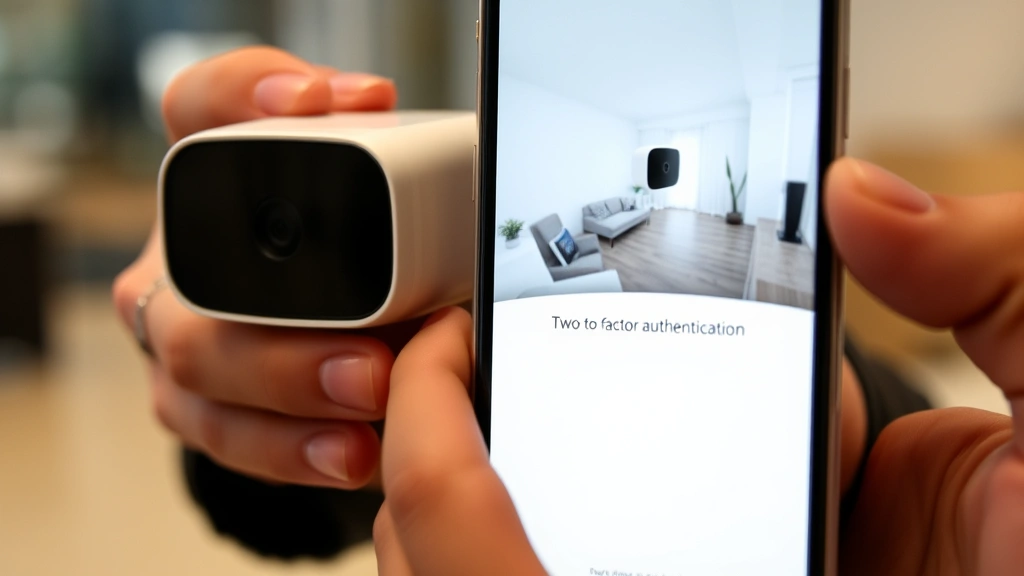
Getting Started with Arlo App Installation
Before you can monitor your home, you need to download and install the official Arlo app on your smartphone or tablet. Visit your device’s app store—whether Apple App Store or Google Play—and search for “Arlo” by Arlo Technologies. It’s crucial to verify you’re downloading the official application with the verified developer badge, as malicious apps impersonating legitimate security software have been discovered in app stores. The legitimate Arlo app should display clear branding and millions of downloads with positive reviews.
Once downloaded, open the app and follow the initial prompts. The app will request various permissions including camera access, microphone access, and location services. While these permissions are necessary for the app to function, you maintain control over when and how they’re used. On your device settings, review each permission individually to ensure you’re comfortable with the app’s access level. This transparency helps prevent unauthorized data collection.
Create a dedicated folder on your device for security-related apps and documentation. This organization helps you quickly identify and manage all your home security applications, making it easier to update them regularly and monitor for suspicious activity.
Creating a Secure Arlo Account
Your Arlo account serves as the gateway to all your cameras and recorded footage. When creating your account, choose a strong, unique password that combines uppercase letters, lowercase letters, numbers, and special characters. Avoid using personal information like birthdates, pet names, or sequential numbers. Security researchers at NIST recommend passwords of at least 12 characters for accounts protecting sensitive data like home security footage.
Enable two-factor authentication (2FA) immediately upon account creation. This critical security layer requires a second verification method—typically a code sent to your email or generated by an authenticator app—in addition to your password. Even if someone obtains your password, they cannot access your account without this second factor. The Arlo app supports multiple 2FA methods; authenticator apps like Google Authenticator or Microsoft Authenticator provide stronger security than SMS-based codes, which can be intercepted through SIM swapping attacks.
Consider using a password manager like Bitwarden, 1Password, or KeePass to generate and store your Arlo credentials securely. Password managers encrypt your passwords and require only one master password to access them, simplifying the process of maintaining strong, unique passwords across all your accounts.
Connecting Your Arlo Cameras to WiFi
Your Arlo cameras require a stable WiFi connection to function. Before connecting cameras, ensure your home network uses WPA3 encryption, or at minimum WPA2. Older encryption standards like WEP are vulnerable to brute-force attacks. Access your router’s settings through its administrative interface and verify the security protocol under wireless settings.
When connecting cameras in the Arlo app, the system will prompt you to scan a QR code on each camera or enter a setup code manually. This process pairs each camera with your account. During setup, the app may ask for your WiFi network name and password—use your strongest network credentials, not a guest network, as guest networks often lack the same security protections.
Position your cameras within range of your WiFi router or a WiFi extender that supports WPA3/WPA2 encryption. Cameras experiencing weak signal strength may drop offline periodically, creating gaps in your surveillance coverage. Additionally, weak connections can be exploited by attackers attempting to intercept unencrypted camera feeds. Most Arlo systems include signal strength indicators in the app; aim for at least 3 out of 4 bars for optimal performance and security.
After successfully connecting all cameras, change your router’s default admin password if you haven’t already. Many home network breaches begin with attackers accessing the router using factory default credentials. This single action protects not just your cameras but your entire home network infrastructure.
Configuring Camera Settings for Maximum Security
Once your cameras are connected, access the settings menu for each device. The Arlo app provides granular control over recording preferences, motion detection sensitivity, and notification settings. Begin by enabling activity zones—these define specific areas within the camera’s view that trigger recordings and alerts. By limiting detection to relevant zones, you reduce false alerts from passing traffic or tree movement while improving battery life on wireless models.
Configure your recording settings based on your security needs. Arlo offers several options: continuous recording, motion-triggered recording, or scheduled recording. For most homeowners, motion-triggered recording provides the optimal balance between security coverage and storage efficiency. Adjust motion sensitivity to minimize false alerts; most systems allow customization to prevent triggering on minor movements like leaves or insects.
Enable push notifications on your mobile device for important events. The Arlo app can alert you when motion is detected, when someone presses a doorbell camera, or when a camera goes offline. However, be cautious about notification settings—excessive alerts can lead to alert fatigue, causing you to ignore genuine security events. Customize notification preferences by camera and by activity type to receive only alerts that matter to your security posture.
Review your security blog resources regularly to stay informed about emerging camera security issues and best practices. Many security firms publish threat intelligence reports about vulnerable IoT devices, helping you understand what protections matter most.
Managing User Access and Permissions
If multiple household members need access to your Arlo system, the app allows you to invite additional users with customized permission levels. This is where granular access control becomes critical. Rather than sharing your main account password with family members, use Arlo’s invitation system to grant limited access.
Arlo provides several permission tiers. Admin users can modify camera settings, change passwords, and manage other user accounts. Viewer users can only watch live streams and recorded footage but cannot adjust settings. Some implementations allow custom permission levels where you specify exactly what each user can access. For example, you might allow your teenage child to view the front door camera but not access recordings from bedroom areas.
Regularly audit who has access to your system. In the app settings, review all invited users and remove anyone who no longer needs access—this includes family members who’ve moved out or friends you initially granted temporary access. Each additional user account represents a potential security vulnerability if their own device is compromised.
When inviting users, ensure they also follow strong password and 2FA practices. You cannot control their account security directly, but you can educate household members about the importance of protecting their credentials. If a family member’s device is compromised, attackers could potentially gain access to your camera feeds through their account.
Advanced Security Features
Modern Arlo systems include sophisticated security features that go beyond basic recording. Explore the app’s advanced settings to implement these protections. Person detection uses artificial intelligence to distinguish between people and other moving objects, reducing false alerts from animals or vehicles. This feature significantly improves the usefulness of your security system by ensuring you’re alerted only when actual people approach your property.
Some Arlo models support package detection, which alerts you when delivery personnel approach your door. Combined with two-way audio capabilities, this allows you to communicate with delivery drivers directly, instructing them where to place packages safely.
The Arlo app supports integration with other smart home platforms including Amazon Alexa, Google Home, and Apple HomeKit. These integrations must be configured carefully—only enable integrations you actually use, and regularly review which third-party services have access to your camera feeds. Each integration point represents a potential vulnerability if that service is compromised.
Enable encryption for all video storage. Arlo offers cloud storage with end-to-end encryption, meaning footage is encrypted on your camera before transmission and remains encrypted in cloud storage. Only your account can decrypt this footage. Review the encryption specifications in your account settings and understand where your footage is stored geographically—this information is important for privacy compliance if you live in regions with strict data protection laws.
Implement geofencing features if your Arlo system supports them. Geofencing uses your phone’s location to automatically arm or disarm your cameras when you leave or arrive home. This prevents false alerts while you’re away and ensures recording begins when the house is empty. However, ensure location services on your phone are set to “While Using App” or “Always” depending on your preference, and understand that sharing location data with the Arlo service has privacy implications.
Troubleshooting Common Security Issues
If your Arlo cameras go offline, resist the urge to immediately reset them to factory settings, as this erases security configurations. First, verify your WiFi network is functioning properly by testing other devices. Check whether your router has been rebooted recently—power cycles can temporarily disconnect wireless devices. Restart the Arlo app on your phone, as connection issues sometimes resolve with a simple app refresh.
If a camera repeatedly disconnects, move it closer to your router or install a WiFi extender with WPA3/WPA2 encryption. Poor signal strength increases the likelihood of connection drops and can enable attackers to intercept unencrypted traffic during transmission failures.
Should you notice unusual activity in your account—like login notifications from unfamiliar locations—immediately change your password and review your 2FA settings. Check the app’s account activity log to see all recent logins and device accesses. If you discover unauthorized access, contact CISA (Cybersecurity and Infrastructure Security Agency) for guidance on securing compromised accounts.
Periodically check the Arlo app for software updates. These updates often include security patches addressing newly discovered vulnerabilities. Enable automatic updates if available, or manually check for updates monthly. Unpatched security vulnerabilities in older app versions can expose your camera feeds to exploitation.
If you experience video feed buffering or quality degradation, this sometimes indicates network congestion or interference. Use a WiFi analyzer app to check whether your router’s channel is crowded with neighboring networks. Switching to a less congested channel can improve both performance and security by reducing susceptibility to interference-based attacks.
For persistent technical issues, consult Arlo’s official support documentation rather than third-party forums, where advice may be outdated or incorrect. Arlo publishes official troubleshooting guides addressing common problems and security concerns.
Yes, the official Arlo app is safe when downloaded from legitimate app stores and used with proper security practices. Always download from your device’s official app store, enable two-factor authentication, use strong passwords, and keep the app updated. Avoid granting unnecessary permissions, and review your account access regularly. While no system is completely immune to attacks, Arlo cameras are secured by encryption and authentication systems. Your risk increases significantly if you use weak passwords, disable two-factor authentication, or allow unauthorized users access to your account. Following the setup practices in this guide substantially reduces your risk of unauthorized access. Both options have security trade-offs. Cloud storage offers redundancy and accessibility but requires trusting Arlo’s servers with your footage. Local storage keeps footage on your property but risks loss if your storage device fails. Many security experts recommend using both—local storage for immediate access and cloud backup for redundancy. Check for updates at least monthly. Security vulnerabilities are regularly discovered in smart home devices, and manufacturers release patches to address them. Enable automatic updates if available. Delaying updates leaves your system vulnerable to known exploits. Technically possible, but not recommended. Guest networks often lack the same security protections as primary networks and may have bandwidth limitations affecting camera performance. Use your primary network with WPA3/WPA2 encryption for optimal security and reliability. Immediately change your password to something strong and unique. Enable or reset your two-factor authentication. Review your account activity log for unfamiliar login locations. Check your email for any password reset confirmations you didn’t initiate. If you discover unauthorized access, consider changing your router’s admin password as well, since attackers with camera access may attempt to compromise your entire network. Contact Arlo support if you need additional assistance securing your account.FAQ
Is the Arlo app safe to use?
Can someone hack into my Arlo cameras?
Should I use cloud storage or local storage for my Arlo footage?
How often should I update my Arlo app and cameras?
Can I use Arlo cameras on a guest WiFi network?
What should I do if I suspect my Arlo account has been compromised?


