Arlo Essential Security Camera: Complete Setup & Security Guide
The Arlo Essential security camera represents a significant advancement in accessible home surveillance technology, combining affordability with robust security features that protect your property 24/7. Whether you’re securing your front door, monitoring backyard activity, or keeping tabs on vulnerable entry points, proper setup and configuration are critical to maximizing both functionality and cybersecurity protection. This comprehensive guide walks you through every aspect of deploying Arlo Essential cameras while maintaining the highest security standards.
Security camera systems are only as strong as their weakest link, and that weakness often lies in improper installation or inadequate security protocols rather than hardware limitations. The Arlo Essential camera line was engineered with privacy and protection in mind, but realizing these benefits requires understanding the nuances of secure setup, network configuration, and ongoing maintenance practices that keep your system resilient against evolving cyber threats.
Understanding Arlo Essential Camera Security Architecture
The Arlo Essential camera operates on a cloud-based architecture that transmits encrypted video feeds to Arlo’s secure servers, where they’re stored and made accessible through the mobile app or web portal. Understanding this architecture is fundamental to appreciating both the capabilities and the security considerations inherent to the system. Unlike local storage solutions that keep footage on physical devices within your home network, Arlo’s cloud infrastructure provides redundancy, accessibility from anywhere, and automatic backup protection.
The camera itself features end-to-end encryption for video transmission, meaning data is encrypted on the device and remains encrypted until decrypted on your authorized viewing device. This encryption standard uses industry-proven protocols that protect against interception attempts during transmission. The camera also includes TLS 1.2 or higher encryption for all communication with Arlo’s servers, ensuring that login credentials, video metadata, and configuration settings remain protected from eavesdropping attacks.
Arlo cameras use unique device tokens rather than storing passwords on the camera itself, reducing the risk of credential exposure if a device is physically compromised. This approach aligns with cybersecurity best practices outlined by the Cybersecurity and Infrastructure Security Agency (CISA), which recommends token-based authentication over password storage for IoT devices.
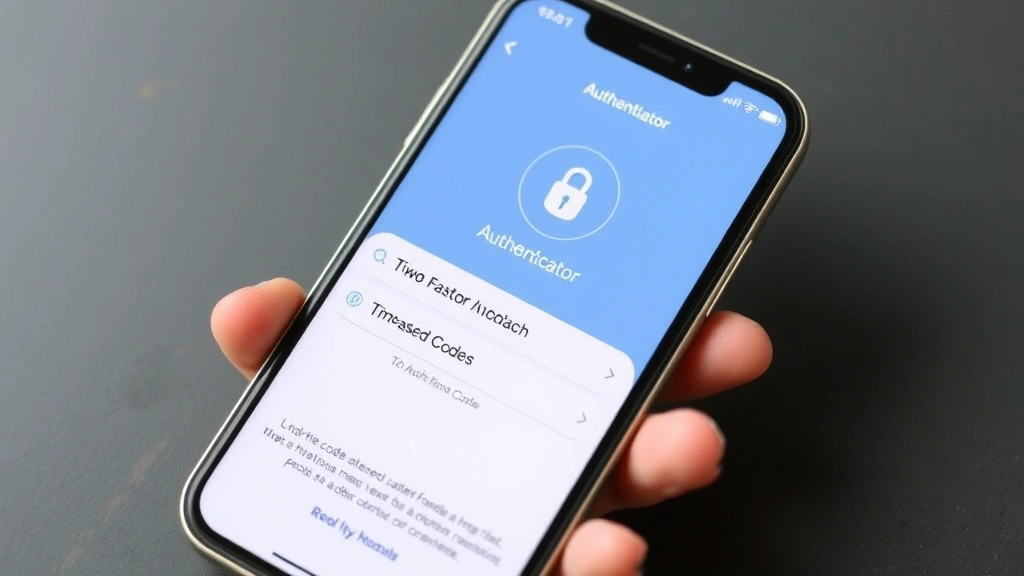
Pre-Installation Security Assessment
Before installing your Arlo Essential camera, conduct a thorough security assessment of your home network and physical environment. This preparatory phase prevents security gaps that could compromise your entire surveillance system and potentially expose your network to broader attacks.
Network Security Audit: Begin by evaluating your WiFi network’s current security posture. Access your router’s admin panel and verify that you’re running WPA3 encryption (or WPA2 if WPA3 isn’t available). Older encryption standards like WEP or WPA are vulnerable to well-known attacks and should never be used. Change your router’s default administrator password to a strong, unique credential that includes uppercase letters, numbers, and special characters. Disable WPS (WiFi Protected Setup), which can be brute-forced in hours despite using encryption.
Confirm that your router firmware is fully updated before connecting any smart home devices. Manufacturers regularly release security patches that address discovered vulnerabilities, and outdated firmware leaves your entire network exposed. Check your router manufacturer’s website monthly for updates, or enable automatic updates if available.
Physical Site Survey: Examine potential camera placement locations for optimal coverage and security. Position cameras to monitor entry points, valuable assets, and areas of concern while considering weather exposure, direct sunlight (which can wash out video), and potential obstruction points. Ensure the installation location is protected from vandalism or theft—mounting cameras high and securely reduces the risk of tampering. Consider line-of-sight to your router to ensure strong signal strength; weak WiFi signals can interrupt video feeds and create security vulnerabilities.
Account Preparation: Create a dedicated Arlo account using an email address you use exclusively for this service. This segmentation reduces the risk that a compromised email account from another service will expose your surveillance system. Use a password manager like Bitwarden or 1Password to generate and store a unique, complex password—at least 16 characters combining uppercase, lowercase, numbers, and symbols.
Step-by-Step Secure Installation Process
Follow this methodical installation approach to ensure both proper functionality and maximum security.
Step 1: Prepare Your Camera Remove the Arlo Essential camera from packaging and inspect for physical damage. Locate the reset button (typically a small pinhole on the device) and note its position. Charge the camera fully before installation if using a battery-powered model—fully charged devices establish stronger initial connections to your network.
Step 2: Download and Verify the Official App Download the Arlo app only from official sources: the Apple App Store or Google Play Store. Verify the publisher is “Arlo Technologies, Inc.” before installation. Avoid sideloading the app or downloading from third-party sources, which may contain malware. Once installed, enable all available security features within the app settings before adding your camera.
Step 3: Create Your Secure Account Launch the app and create your account using the dedicated email and strong password prepared during your security assessment. Enable two-factor authentication immediately—this step is so critical it warrants emphasis. Two-factor authentication prevents unauthorized access even if your password is compromised.
Step 4: Connect to WiFi When the app prompts you to add a device, select “Arlo Essential.” The camera will enter pairing mode, indicated by a specific LED pattern. Ensure your phone is connected to the same 2.4GHz WiFi network you want the camera to use (Arlo Essential cameras require 2.4GHz; 5GHz networks won’t work). Enter your WiFi network name and password exactly as configured on your router. If your router uses a hidden SSID, manually enter the network name.
Step 5: Verify Secure Connection Once connected, the app should display a successful pairing message. Navigate to the camera’s settings within the app and confirm the encryption status shows “Encrypted” or similar language indicating secure transmission. Check that the camera is pulling video feed without interruption.
Network Configuration and WiFi Security
Your WiFi network is the critical pathway through which your Arlo camera communicates with Arlo’s servers. Securing this pathway is essential for overall system security.
Router Hardening: Access your router’s administration interface (typically 192.168.1.1 or 192.168.0.1) and make the following security modifications: Change the default administrator username and password to unique, complex credentials. Disable UPnP (Universal Plug and Play), which allows devices to automatically open ports on your router—a feature that can be exploited. Disable WPS entirely. Enable the router’s built-in firewall and set it to the highest security level available. Some routers offer “intrusion detection” features; enable these if available.
Network Segmentation: If your router supports guest networks, consider connecting your Arlo camera to a separate guest network rather than your primary network. This approach isolates your camera from computers, phones, and other devices, limiting the damage if the camera is ever compromised. Ensure the guest network uses the same strong encryption (WPA3 or WPA2) as your primary network.
WiFi Signal Optimization: Position your router centrally and elevated in your home to maximize coverage. Weak signal strength causes connection drops that interrupt surveillance and can create security gaps. If your camera frequently disconnects, consider using a WiFi extender specifically to improve signal in that area. However, use mesh WiFi systems rather than traditional range extenders when possible, as they maintain stronger security standards.
Regular Network Monitoring: Access your router’s connected devices list monthly to identify any unknown devices. Unauthorized devices on your network could potentially intercept camera data. If you find unknown devices, change your WiFi password immediately and investigate further. Consider enabling MAC address filtering if your router supports it, which restricts network access to only pre-approved devices.
Advanced Security Settings and Encryption
Beyond basic setup, Arlo Essential cameras offer advanced security configurations that provide granular control over data handling and access permissions.
Activity Zones and Privacy Masking: Within the Arlo app, configure activity zones to define which areas of your camera’s view should trigger motion alerts. This feature reduces false alerts from street traffic, swaying trees, or other irrelevant motion while improving security by focusing detection on areas of actual concern. Privacy masking allows you to obscure sensitive areas—such as a neighbor’s window or a street-facing area where passersby appear—from recording entirely. This feature protects privacy while maintaining surveillance of your property.
Recording and Storage Settings: Configure your camera to record continuously or on motion detection based on your security needs. Continuous recording provides complete documentation but consumes more cloud storage; motion detection recording conserves storage while still capturing relevant events. Review Arlo’s privacy policy and data retention practices to understand how long footage is retained and what options you have for deletion.
Access Control and Sharing: The Arlo app allows you to share camera access with family members or trusted contacts. When granting access, use the app’s permission controls to limit what users can do—some users might only need viewing access, while trusted household members might need to adjust settings. Review shared access permissions monthly and revoke access for anyone who no longer needs it. Each shared user should have their own Arlo account rather than sharing login credentials.
Firmware Updates: Enable automatic firmware updates in your camera settings if available. Firmware updates patch security vulnerabilities and improve functionality. If automatic updates aren’t available, manually check for updates monthly through the app. Never ignore firmware update notifications, as they often address critical security issues.
Two-Factor Authentication Implementation
Two-factor authentication (2FA) is the single most important security setting you can enable for your Arlo account, and it deserves dedicated attention.
2FA requires two separate verification methods to access your account: your password (something you know) plus a second factor (something you have or something you are). Even if an attacker obtains your password through phishing, data breaches, or other means, they cannot access your account without the second factor.
Setting Up 2FA: In the Arlo app, navigate to Account Settings and select “Two-Factor Authentication.” Arlo typically offers these options: SMS-based codes (a code sent to your phone), authenticator app codes (generated by apps like Google Authenticator or Microsoft Authenticator), or backup codes (printed codes saved for emergency access). Choose authenticator app-based 2FA as your primary method, as it’s more secure than SMS, which is vulnerable to SIM swapping attacks. SMS-based 2FA is acceptable as a backup method.
Using an Authenticator App: Download an authenticator app like Google Authenticator, Microsoft Authenticator, or Authy to your phone. When enabling 2FA in Arlo, scan the provided QR code with your authenticator app. The app will then generate a new six-digit code every 30 seconds. Enter this code into the Arlo setup screen to verify the connection. Save the backup codes provided by Arlo in a secure location—a password manager or encrypted notes app—in case you lose access to your authenticator app.
Ongoing 2FA Management: Every time you log into your Arlo account from a new device or browser, you’ll be prompted for your 2FA code. This additional step takes just seconds but provides substantial protection. If you change phones, update your authenticator app settings immediately to prevent account lockout. Test your backup codes at least annually to ensure they work correctly.
Ongoing Maintenance and Threat Monitoring
Security is not a one-time setup task but an ongoing practice requiring regular attention and vigilance. Establish a maintenance schedule to keep your Arlo system secure.
Monthly Security Checklist: Review your Arlo account login history within the app to identify any unauthorized access attempts. Most apps show the date, time, and location of recent logins; unfamiliar logins warrant immediate investigation. Check for firmware updates and install them promptly. Review shared access permissions and revoke access for users who no longer need it. Verify your WiFi network’s connected device list for unknown devices. Check that 2FA is still enabled and functioning correctly.
Quarterly Deep Review: Every three months, perform a deeper security assessment. Change your Arlo account password to a new, unique complex password. Review your router’s security settings and confirm WPA3/WPA2 encryption is still active. Check for any security advisories or recalls for Arlo Essential cameras on the manufacturer’s website or through CISA’s alerts page. Review your camera’s motion detection sensitivity settings and adjust if you’re experiencing false alerts or missing genuine events.
Threat Intelligence Awareness: Subscribe to Arlo’s security notifications to receive alerts about vulnerabilities or recommended practices. Follow cybersecurity news sources like Krebs on Security or Brian Krebs’s threat intelligence reports to stay informed about emerging threats affecting smart home devices. If a major vulnerability is disclosed affecting Arlo cameras, prioritize updating immediately.
Physical Maintenance: Clean your camera lens monthly with a soft, dry cloth to maintain video quality. Inspect the camera housing for signs of tampering or physical damage. Ensure mounting hardware remains tight and secure. Check that weatherproofing seals remain intact, especially before winter or heavy rain seasons.
Troubleshooting Common Security Issues
Even well-configured systems occasionally encounter security-related challenges. Understanding how to diagnose and resolve these issues prevents vulnerabilities.
Camera Frequently Disconnects from WiFi: Frequent disconnections can create security gaps where events aren’t recorded. This issue typically indicates weak signal strength. Move your router closer to the camera, use a WiFi extender to improve coverage, or consider upgrading to a more powerful router. Ensure no other devices are consuming excessive bandwidth on your network, which can degrade WiFi quality. Check that your router is positioned away from microwave ovens and cordless phones, which operate on the same 2.4GHz frequency and cause interference.
Login Failures or 2FA Issues: If you can’t log into your account, verify that caps lock is off and you’re entering your password correctly. If 2FA codes aren’t working, confirm your authenticator app’s time is synchronized with your phone’s system time (some apps have settings to sync time). If you lose access to your authenticator app, use the backup codes you saved during setup to regain access. If you don’t have backup codes, use Arlo’s account recovery process.
Suspicious Activity Alerts: If you receive alerts about login attempts from unfamiliar locations, change your Arlo password immediately and verify your email account hasn’t been compromised. Enable additional security features like geographic login restrictions if Arlo offers them. Review recent activity in the app to identify any unauthorized access attempts.
Video Feed Lag or Buffering: Delays in video transmission could indicate network congestion or weak signal. Check your internet connection speed using a speed test tool—Arlo Essential cameras require minimum 2 Mbps upload speed for reliable operation. If your connection is slower, contact your internet provider about upgrading. If connection speed is adequate, the issue likely relates to WiFi signal strength at the camera location.
Unexpected Cloud Storage Charges: Review your Arlo subscription plan in the app to understand what storage tier you’re using. Free plans offer limited storage; if you’re approaching limits, consider upgrading or reducing recording frequency. Verify that only authorized accounts have access to your camera—unauthorized users won’t generate charges, but they would consume your storage allocation.
FAQ
Is Arlo Essential camera footage secure from hackers?
Yes, Arlo Essential cameras use end-to-end encryption for video transmission and TLS 1.2+ encryption for all server communication. However, security also depends on your implementation—strong passwords, two-factor authentication, network security, and firmware updates are essential. Following the setup practices in this guide provides robust protection against typical attack vectors.
Can someone access my Arlo camera without my password?
Without two-factor authentication enabled, someone with your password could access your camera. With 2FA enabled, they would need both your password and access to your second factor (authenticator app or phone), making unauthorized access extremely difficult. This is why 2FA is non-negotiable for security.
Should I use the same WiFi network for my Arlo camera as my computers?
While not strictly necessary, using a separate guest network for your camera provides additional security isolation. However, ensuring both networks use strong encryption (WPA3 or WPA2) is more important than segregation. If your router supports it, guest network isolation is a worthwhile security enhancement.
How often should I update my Arlo camera firmware?
Update firmware immediately when updates become available, as they typically address security vulnerabilities. At minimum, check for updates monthly. Enable automatic updates if your camera supports this feature to ensure you never miss critical security patches.
What should I do if my Arlo camera is physically stolen?
Immediately change your Arlo account password and revoke access for any shared users. The camera itself cannot be used without your account credentials, so the thief cannot access your footage or use it to access your network. However, changing your password prevents any potential unauthorized access attempts.
Can my ISP or WiFi provider see my Arlo camera footage?
Your ISP can see that you’re transmitting encrypted data to Arlo’s servers, but they cannot view the actual video content due to end-to-end encryption. The encryption is applied before data leaves your home, so even your ISP cannot decrypt the footage. This is one of the key security benefits of Arlo’s architecture.
Is cloud storage safer than local storage for camera footage?
Both approaches have advantages. Cloud storage provides redundancy, automatic backups, and accessibility from anywhere, but requires trusting Arlo with your data. Local storage keeps footage on physical devices you control, but risks data loss if the device fails. Arlo Essential cameras primarily use cloud storage; this is generally secure if you follow the security practices outlined in this guide.
Should I cover my Arlo camera when not in use?
Covering your camera when away doesn’t enhance security and may actually reduce functionality. Modern cameras like Arlo Essential are designed for continuous operation. Instead, focus on securing your account, network, and keeping firmware updated—these measures provide far better protection than physical covering.


