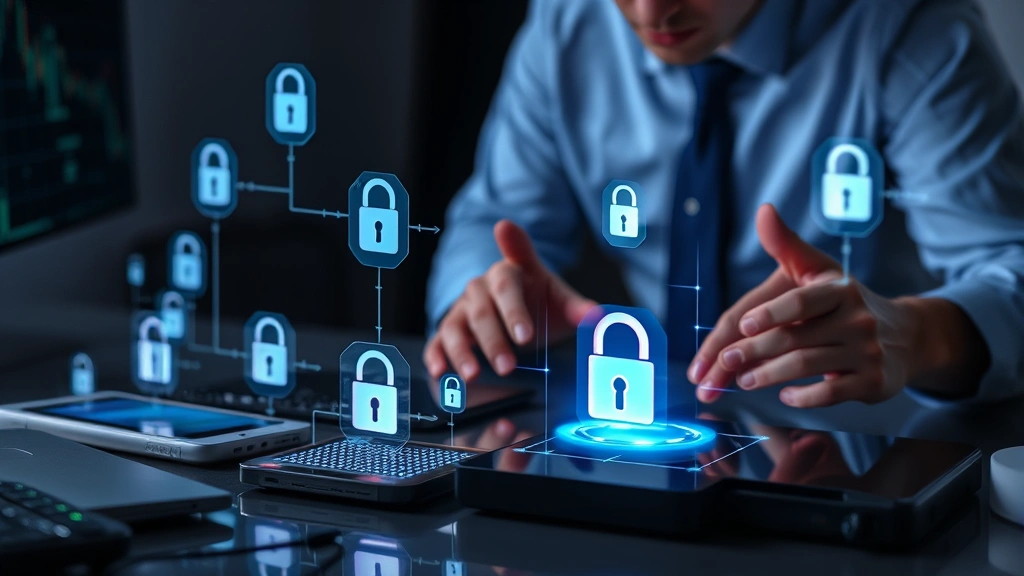
Are Your Devices Secure? Cyber Pro Insights
In today’s hyperconnected world, device security has become as critical as locking your front door. Whether you’re streaming entertainment on Netflix or browsing the web, cybercriminals are constantly working to exploit vulnerabilities in your phones, laptops, tablets, and IoT devices. The average person owns multiple connected devices, yet most lack a comprehensive security strategy to protect them.
According to recent threat intelligence reports, over 60% of data breaches involve compromised personal devices. From ransomware attacks targeting small businesses to sophisticated phishing campaigns aimed at consumers, the threat landscape continues to evolve at an alarming pace. This guide provides actionable insights to help you assess and strengthen your device security posture.
Your digital life deserves protection. Let’s explore what makes devices vulnerable and how you can defend against emerging cyber threats.

Understanding Device Vulnerability Landscape
Devices remain vulnerable due to multiple interconnected factors. Manufacturers release software patches regularly, yet millions of users delay or skip updates entirely. This creates an enormous attack surface that threat actors actively exploit. CISA (Cybersecurity and Infrastructure Security Agency) tracks thousands of vulnerabilities daily, with many affecting consumer-grade devices.
Legacy systems represent another critical vulnerability vector. Organizations and individuals continue running outdated operating systems—Windows 7, older macOS versions, or unpatched Android devices—despite manufacturers ending support. These systems lack security patches for known exploits, making them trivial targets for automated attack tools.
Zero-day vulnerabilities present an insidious threat. These previously unknown security flaws allow attackers to compromise devices before developers even realize the vulnerability exists. While zero-days are harder to defend against, proper security hygiene significantly reduces your exposure.
Supply chain compromises have also emerged as a major concern. Attackers inject malicious code into software during development or distribution, affecting millions of devices simultaneously. Recent incidents demonstrate that even trusted vendors aren’t immune to sophisticated attacks.
Assessing Your Current Security Posture
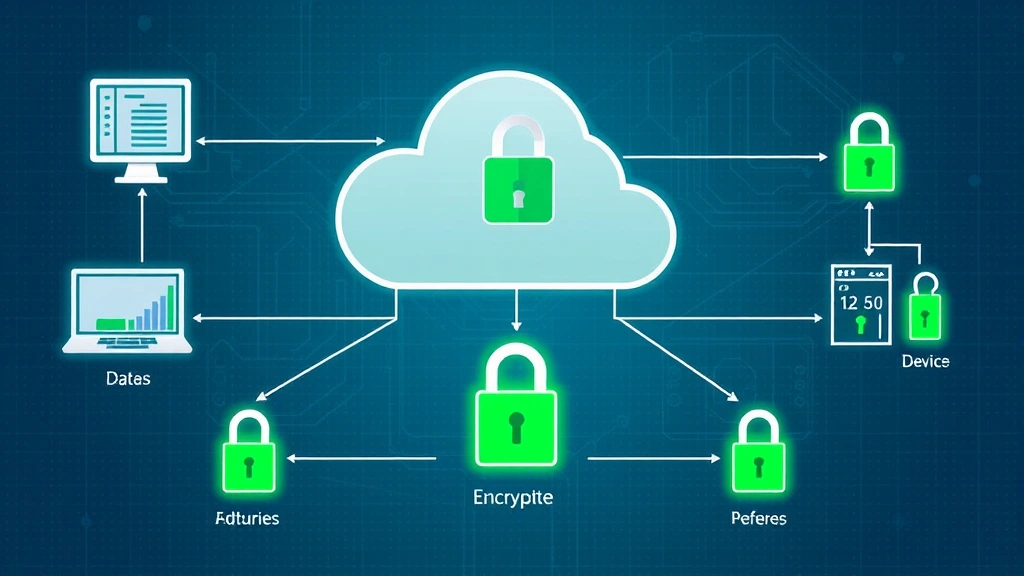
Before implementing security improvements, you need a baseline understanding of your current vulnerability level. Start by creating a comprehensive device inventory. List every device you own—smartphones, tablets, laptops, desktop computers, smart TVs, fitness trackers, and connected home devices. Document the operating system version, last security update date, and installed applications for each device.
Next, evaluate your authentication practices. Are you using strong, unique passwords for each account? Do you have multi-factor authentication enabled on critical accounts? Weak credentials remain the primary attack vector for account compromise. NIST cybersecurity guidelines recommend minimum 12-character passwords with complexity requirements.
Examine your software update practices. When manufacturers release security patches, how quickly do you install them? Delaying updates by even a few weeks creates exploitable gaps. Check your current patch level for each device and identify any overdue updates.
Review your application permissions. Mobile apps often request access to your location, contacts, camera, and microphone. Many applications request far more permissions than necessary for their functionality. Audit installed apps and revoke unnecessary permissions.
Consider your network environment. Are you connecting to public Wi-Fi networks regularly? Do you use a VPN on untrusted networks? How frequently do you back up your data? These factors significantly impact your overall security posture.
Essential Security Measures for All Devices
Regardless of device type or operating system, certain security fundamentals apply universally. These foundational practices form the backbone of robust device protection.
Enable Automatic Security Updates: Configure all devices to install security patches automatically. This removes the temptation to delay critical updates. Most operating systems allow scheduling updates for convenient times, minimizing disruption to your workflow.
Implement Strong Authentication: Use complex passwords combining uppercase, lowercase, numbers, and symbols. Enable biometric authentication where available—fingerprint or facial recognition provides both security and convenience. For critical accounts, enable multi-factor authentication requiring a second verification method.
Install Reputable Security Software: Deploy endpoint protection solutions appropriate for each device type. Modern antivirus software detects malware, ransomware, and other threats. Choose solutions from established vendors rather than free alternatives of questionable origin.
Disable Unnecessary Services: Disable Bluetooth when not in use. Disable location services for apps that don’t require them. Disable file sharing and remote access features on devices outside your network. Each enabled service represents a potential attack surface.
Regular Backups: Maintain offline backups of critical data. Ransomware attacks become far less devastating when you have clean backups available. Test your backup restoration process regularly to ensure backups actually work when needed.
Physical Security: Protect devices from unauthorized physical access. Use device locks, full-disk encryption, and secure storage. A lost or stolen device with unencrypted data represents catastrophic data exposure.
Operating System Hardening Strategies
Each operating system requires tailored hardening approaches. Windows, macOS, Linux, Android, and iOS all have specific security configurations that enhance protection.
Windows Hardening: Enable Windows Defender or install third-party antivirus software. Configure Windows Firewall to block unauthorized inbound connections. Enable Windows Update to automatically install security patches. Use BitLocker or VeraCrypt for full-disk encryption. Disable unnecessary startup programs to reduce attack surface. Configure User Account Control to require administrator approval for system changes.
macOS Hardening: Enable FileVault encryption for your hard drive. Configure the firewall to block incoming connections. Keep macOS updated to the latest version. Use strong passwords with Apple ID protection. Enable System Integrity Protection. Review app permissions in System Preferences regularly. Consider using Little Snitch to monitor outbound application connections.
Linux Hardening: Configure SELinux or AppArmor for mandatory access control. Disable unnecessary services and ports. Use a firewall like UFW or firewalld. Keep all packages updated through your package manager. Implement strong SSH security if accessing systems remotely. Use sudo with appropriate privilege escalation controls.
Android Hardening: Enable Google Play Protect. Install apps exclusively from Google Play Store or F-Droid. Disable installation from unknown sources. Enable encryption for sensitive data. Use strong PINs or biometric authentication. Review app permissions before granting them. Enable developer options security settings.
iOS Hardening: Keep iOS updated to the latest version. Use strong Face ID or Touch ID with complex passcodes. Enable two-factor authentication for Apple ID. Review app permissions in Settings. Disable Siri on lock screen. Use VPN services for secure browsing. Enable automatic lock with minimal timeout.
Network Security and Safe Browsing
Your network environment significantly impacts device security. Unsafe browsing practices and insecure networks expose devices to interception and compromise.
Secure Your Home Network: Change default Wi-Fi passwords and router admin credentials. Update router firmware regularly. Use WPA3 encryption (or WPA2 if WPA3 unavailable). Disable WPS (Wi-Fi Protected Setup). Create a guest network for visitors, separate from your primary network. Disable remote administration features on your router.
VPN Usage: Use a reputable VPN service when connecting to public Wi-Fi networks. VPNs encrypt your traffic, preventing eavesdropping on unsecured networks. Choose VPN providers with no-logging policies and strong encryption. Verify your VPN connection is active before browsing on public networks.
Phishing Prevention: Examine email sender addresses carefully—attackers often use addresses resembling legitimate organizations. Avoid clicking links in emails; instead, navigate directly to websites. Verify URLs before entering credentials. Be suspicious of urgent requests for personal information. Hover over links to preview their actual destination.
HTTPS and Certificate Validation: Only enter sensitive information on websites using HTTPS encryption. Modern browsers display security indicators showing certificate validity. Avoid websites with certificate warnings or errors.
Browser Security: Keep your browser updated to the latest version. Install security extensions like uBlock Origin for ad-blocking and malware prevention. Disable browser plugins like Flash that introduce vulnerabilities. Clear cookies and browsing history regularly. Consider using privacy-focused browsers like Firefox with enhanced tracking protection.
Mobile Device Protection Best Practices
Mobile devices present unique security challenges due to their portability and constant connectivity. Smartphones and tablets require specialized protection strategies beyond traditional computer security.
App Store Safety: Download apps exclusively from official app stores—Google Play Store or Apple App Store. Review app permissions before installation. Check app ratings and user reviews for suspicious activity reports. Verify developer authenticity before installing apps. Delete unused applications regularly to reduce attack surface.
Device Encryption: Enable full-device encryption available on modern Android and iOS devices. This ensures data remains unreadable if your device is lost or stolen. Use strong authentication methods—complex PINs or biometric authentication.
Location Privacy: Disable location services for apps that don’t require them. Use coarse location when possible instead of precise GPS. Review location permissions for each installed app. Be cautious sharing location in social media posts.
Remote Management: Enable device tracking services—Find My iPhone or Google Find My Device. These services allow locating lost devices and remotely wiping data if necessary. Configure automatic wipe settings for excessive failed unlock attempts.
USB Security: Avoid connecting mobile devices to untrusted computers or chargers. Malicious USB connections can install malware or extract data. Use trusted charging cables and power adapters. Consider USB data blockers when charging on public charging stations.
Incident Response and Recovery Planning
Despite robust security measures, breaches and compromises may still occur. Preparation and rapid response minimize damage and accelerate recovery.
Recognizing Compromise Indicators: Watch for unusual battery drain, unexpected data usage spikes, or slower performance—potential signs of malware infection. Unfamiliar apps appearing on your device suggest compromise. Unexpected account lockouts or password reset notifications indicate potential credential theft. Monitor your financial accounts for unauthorized transactions.
Immediate Response Actions: If you suspect compromise, disconnect the device from networks immediately. Change all critical account passwords from a different device. Enable additional authentication factors on compromised accounts. Contact your financial institution if financial accounts were compromised. Consider running malware scans on the affected device.
Recovery Process: For severe compromises, backing up your data and performing a complete device wipe may be necessary. This removes all malware but also erases all data. Restore from clean backups created before the compromise occurred. For future protection, maintain regular offline backups allowing you to restore to pre-compromise states.
Post-Incident Analysis: After resolving an incident, analyze what allowed the compromise. Did you click a malicious link? Did you install an untrusted app? Did you use weak passwords? Understanding the attack vector helps prevent similar incidents. Document lessons learned and adjust your security practices accordingly.
Cyber Insurance: Consider cyber insurance policies covering device security incidents, identity theft, and financial fraud. These policies provide financial protection and often include incident response support. Review coverage carefully to understand what’s included and what requires action on your part.
FAQ
How often should I update my devices?
Security updates should be installed immediately upon availability. Most operating systems now offer automatic updates—enable this feature if available. Critical vulnerabilities affecting your devices require urgent patching within days, not weeks.
Are free antivirus solutions reliable?
Free antivirus software varies widely in effectiveness. Some reputable vendors offer free versions with basic protection, while others provide minimal security. Paid solutions typically offer superior protection, faster threat detection, and better customer support. Research specific products before choosing.
What’s the difference between a VPN and antivirus?
VPNs encrypt network traffic between your device and the VPN server, protecting against network-level eavesdropping. Antivirus software detects and removes malware already on your device. Both serve different purposes—use both for comprehensive protection.
Can I trust public Wi-Fi with a VPN?
VPNs significantly improve public Wi-Fi security by encrypting your traffic. However, they don’t protect against all threats. Avoid accessing sensitive accounts on public networks even with VPN protection. Be cautious of phishing attacks and malicious websites regardless of VPN status.
How do I know if my password is strong enough?
Strong passwords contain at least 12 characters including uppercase, lowercase, numbers, and symbols. Avoid dictionary words, personal information, or sequential characters. Use unique passwords for each account. Consider passphrases combining random words for both strength and memorability.
What should I do if I receive a suspicious email?
Don’t click links or download attachments from suspicious emails. Don’t reply with personal information. Delete the email. If the email appears to be from a known organization, contact them directly using official contact information to verify legitimacy. Report phishing emails to your email provider.
Is it safe to use the same password everywhere?
Never reuse passwords across multiple accounts. If one account is compromised, attackers immediately try that password on other accounts. Password managers like Bitwarden or 1Password securely store unique passwords for each account, eliminating the need to memorize multiple passwords.
How often should I change my passwords?
NIST guidelines no longer recommend regular password changes unless compromise is suspected. Instead, focus on strong, unique passwords. Change passwords immediately if you suspect compromise or after a data breach affecting the service.
What’s the best way to store sensitive documents?
Store sensitive documents in encrypted containers or password-protected archives. Use encrypted cloud storage services like Tresorit or Sync.com. Maintain offline backups on encrypted external drives. Never store sensitive documents in plain text or unencrypted cloud services.
Can I trust my device manufacturer’s security?
Major manufacturers—Apple, Microsoft, Google—invest heavily in security. However, no system is perfectly secure. Manufacturers regularly release security patches addressing discovered vulnerabilities. Install these patches promptly. Stay informed about security issues affecting your devices through official security advisories.


