Protect WordPress Files on S3: Expert Guidelines
WordPress deployments leveraging Amazon S3 for file storage face unique security challenges that demand comprehensive protection strategies. As organizations migrate media assets, backups, and plugin files to cloud object storage, understanding the attack surface becomes critical. Misconfigured S3 buckets represent one of the most exploited vulnerabilities in cloud environments, potentially exposing sensitive WordPress data to unauthorized access, data theft, and malicious modification.
This guide provides actionable security measures for protecting WordPress files stored on Amazon S3, addressing bucket configuration, access controls, encryption, monitoring, and incident response. Whether you’re managing a small WordPress site or an enterprise deployment, implementing these expert guidelines will significantly reduce your security risk and ensure compliance with industry standards.
The intersection of WordPress security and S3 protection requires understanding both application-level vulnerabilities and cloud infrastructure risks. By combining proper IAM policies, encryption protocols, and monitoring strategies, you create a defense-in-depth approach that protects your most valuable digital assets.

Understanding S3 Security Fundamentals for WordPress
Amazon S3 operates on a principle of default-deny access, meaning buckets are private unless explicitly configured otherwise. However, many WordPress administrators mistakenly assume S3 provides automatic protection, leading to dangerous misconfigurations. Understanding how S3 access models work is the foundation for securing WordPress files.
S3 employs multiple access control mechanisms: bucket policies, access control lists (ACLs), IAM policies, and object-level permissions. WordPress deployments typically interact with S3 through plugins like WP Offload Media, which require specific permissions to upload, retrieve, and manage files. The challenge lies in granting only necessary permissions while preventing overly permissive configurations.
Public access to WordPress files stored on S3 creates several risks. Exposed configuration files could reveal database credentials or API keys. Unprotected media directories might expose draft posts or sensitive documents. Backup files containing complete WordPress installations could enable attackers to identify vulnerabilities and plan targeted attacks. According to CISA guidelines, cloud storage misconfigurations rank among the top attack vectors affecting organizations.
The relationship between WordPress security and S3 protection extends beyond file access. S3 buckets can be leveraged for lateral movement within compromised environments, serve as data exfiltration endpoints, or host malicious content. Implementing comprehensive S3 security directly protects your WordPress installation and reduces your organization’s overall cloud security risk.
Configuring Bucket Policies and Access Controls
Bucket policies define who can perform which actions on S3 resources. For WordPress deployments, you should implement the principle of least privilege, granting only required permissions. A well-crafted bucket policy explicitly denies public access while allowing your WordPress application specific operational permissions.
Start by blocking all public access using AWS’s Block Public Access feature. This prevents accidental exposure of buckets regardless of policy misconfigurations. Navigate to your S3 bucket settings and enable all four block public access options: block public ACLs, ignore public ACLs, block public bucket policies, and restrict bucket policies.
Next, implement a restrictive bucket policy that denies unencrypted uploads. This policy statement prevents attackers from uploading files without encryption, protecting data in transit:
- Deny all principals except specific IAM roles
- Require SSL/TLS for all S3 operations
- Restrict actions to only necessary operations (GetObject, PutObject)
- Implement IP-based restrictions if applicable
For WordPress specifically, your bucket policy should permit your web server’s IAM role to perform upload and retrieval operations while denying access from unknown sources. This creates a clear boundary between legitimate WordPress operations and potential attacks. Consider using AWS IAM policy generators to create properly formatted policies without syntax errors.
ACLs provide an additional layer of access control at the object level. For WordPress files, disable public-read ACLs and ensure all objects are private by default. Some WordPress S3 plugins automatically set ACLs during uploads; verify your plugin’s configuration to prevent public exposure.
Implementing Encryption and Data Protection
Encryption protects WordPress files both at rest and in transit. S3 supports multiple encryption mechanisms, each appropriate for different security requirements. For WordPress deployments, server-side encryption with AWS-managed keys (SSE-S3) provides baseline protection, while server-side encryption with customer-managed keys (SSE-KMS) offers enhanced control and auditability.
Enable default encryption on your S3 bucket to automatically encrypt all uploaded files. This prevents accidental uploads of unencrypted data and ensures consistent protection across your WordPress media library. Navigate to bucket properties and select the appropriate encryption option.
For sensitive WordPress installations handling personal data or protected health information, consider using customer-managed KMS keys. This approach allows you to control key rotation, audit key usage, and revoke access if necessary. KMS integration requires additional configuration but provides enterprise-grade security appropriate for regulated environments.
In-transit encryption is equally critical. Configure your WordPress S3 plugin to use HTTPS exclusively when communicating with S3. Verify SSL certificate validation is enabled to prevent man-in-the-middle attacks. Additionally, enable S3 Transfer Acceleration if your WordPress installation operates globally, but ensure the increased cost is justified by your security requirements.
Implement versioning on your S3 bucket to protect against ransomware attacks and accidental deletion. Versioning maintains historical copies of all objects, allowing recovery from malicious modifications. However, versioning increases storage costs; implement lifecycle policies to transition old versions to cheaper storage classes or delete them after retention periods expire.
Managing IAM Permissions Effectively
IAM policies define what actions specific users or services can perform on S3 resources. For WordPress, create dedicated IAM users or roles with minimal required permissions rather than using AWS root credentials or overly permissive accounts.
A properly scoped WordPress S3 policy should include only these actions: s3:GetObject, s3:PutObject, s3:DeleteObject, and s3:ListBucket. Restrict these permissions to your specific bucket and prefix (folder). Never grant s3:* or other wildcard permissions, as this enables attackers to modify bucket policies, delete entire buckets, or expose sensitive data.
Example minimal policy structure:
- Effect: Allow
- Action: s3:GetObject, s3:PutObject
- Resource: arn:aws:s3:::your-wordpress-bucket/wp-content/*
- Condition: StringEquals aws:SecureTransport true
Implement MFA Delete on your S3 bucket for additional protection. This requires multi-factor authentication to permanently delete object versions, preventing attackers from destroying backups or audit logs even if they compromise credentials.
Rotate IAM access keys regularly, ideally every 90 days. Compromised access keys represent a significant security threat; regular rotation limits the window of exposure. Automate key rotation using AWS Secrets Manager to reduce manual overhead.
For WordPress deployments using EC2 instances or Lambda functions, use IAM roles instead of embedded credentials. Roles provide temporary, auto-rotating credentials without exposing static keys in configuration files. This approach significantly reduces the risk of credential compromise.
Monitoring and Logging S3 Activity
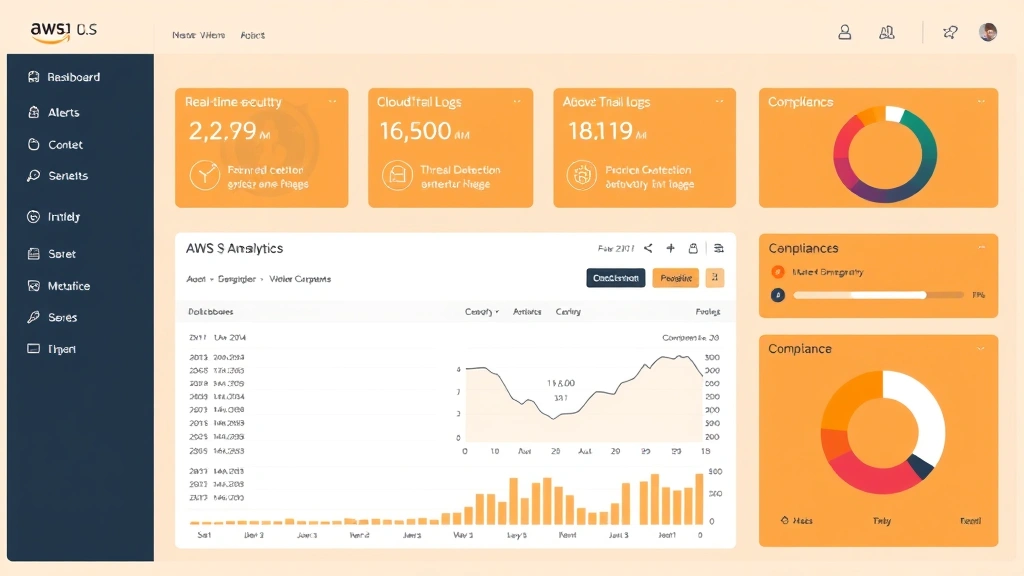
Comprehensive logging enables detection of unauthorized access attempts, suspicious modifications, and potential breaches. Enable S3 access logging and configure CloudTrail to capture all API calls affecting your WordPress bucket.
S3 access logs record detailed information about every request: requester identity, request time, source IP, action performed, and response status. Enable these logs and store them in a separate, protected S3 bucket with appropriate retention policies. Regularly analyze logs for suspicious patterns such as:
- Repeated failed authentication attempts
- Access from unexpected IP addresses
- Bulk download operations outside normal patterns
- Modifications to bucket policies or encryption settings
CloudTrail provides a higher-level view of AWS API activity, including S3 operations. Enable CloudTrail for your entire AWS environment and ensure logs are stored in a protected S3 bucket with MFA Delete enabled. CloudTrail logs help with compliance audits and forensic investigations following security incidents.
Implement CloudWatch alarms to alert on suspicious activities. Configure alerts for:
- Failed PutObject operations exceeding threshold
- DeleteObject operations on critical files
- Changes to bucket policies or encryption settings
- Disabled access logging
Consider using AWS Config to monitor S3 bucket configuration compliance. AWS Config continuously evaluates your S3 buckets against security baselines and alerts when configurations drift. This automated approach catches misconfigurations before they become security incidents.
Securing WordPress Uploads and Media Files
WordPress media uploads represent a primary attack vector if not properly secured. Implement additional controls beyond bucket-level policies to protect uploaded files from exploitation.
Configure your S3 bucket to prevent serving executable files. Set appropriate MIME types for uploads and reject files with dangerous extensions (.exe, .php, .js). Most WordPress S3 plugins provide upload filtering, but verify these controls are properly configured.
Implement a Web Application Firewall (WAF) in front of your WordPress installation to inspect requests and prevent malicious file uploads. AWS WAF can block requests containing suspicious file extensions, oversized uploads, or patterns matching known attack signatures.
Store WordPress uploads outside the web root when possible. Instead of serving files directly from S3 URLs, route requests through your WordPress application using signed URLs. This approach allows you to implement additional access controls, audit logging, and request validation at the application layer.
Implement virus scanning for uploaded files using AWS Lambda and ClamAV. When files are uploaded to S3, trigger a Lambda function that scans the file for malware. If threats are detected, quarantine the file and alert administrators. This prevents malicious files from remaining in your WordPress installation.
For backup files stored on S3, implement separate access controls and encryption. Backups should be immutable and accessible only to backup restoration processes. Store backups in a different S3 bucket with stricter policies than your live media bucket.
Best Practices for S3 and WordPress Integration
Successful S3 WordPress protection requires holistic security practices extending beyond individual configurations. Implement these best practices to maintain robust security over time.
Use WordPress S3 plugins from reputable sources. Popular plugins like WP Offload Media, Stateless, and BackWPup have undergone security audits and community vetting. Regularly update these plugins to patch vulnerabilities. Verify plugin code quality by reviewing GitHub repositories and checking for active maintenance.
Implement infrastructure-as-code for S3 configuration. Using Terraform or CloudFormation ensures consistent, reproducible bucket configurations. Infrastructure-as-code prevents manual errors and enables version control of security settings. Store IaC templates in private Git repositories with access controls.
Establish a regular security audit schedule. Quarterly reviews of bucket policies, IAM permissions, and encryption settings ensure configurations remain appropriate. Document all changes and maintain an audit trail. When security requirements change, update configurations systematically rather than making ad-hoc modifications.
Implement disaster recovery procedures. Test your ability to restore WordPress from S3 backups regularly. Backup procedures should be automated, verified, and documented. Ensure backup restoration doesn’t inadvertently expose sensitive data or compromise security.
Monitor AWS costs associated with S3. Unusual cost spikes may indicate unauthorized access, data exfiltration, or misconfigured lifecycle policies. Set up AWS Budgets alerts to notify you of unexpected charges that might indicate security issues.
Implement network-level controls. Use VPC endpoints to route S3 traffic through private networks, preventing exposure to the public internet. VPC endpoints also reduce data transfer costs and improve performance for on-premises WordPress installations.
Establish incident response procedures. Define clear processes for responding to S3 security incidents. Document who should be notified, what information should be collected, and how to contain incidents. Regular incident response drills ensure your team can respond effectively under pressure.
For organizations seeking comprehensive guidance, consult AWS S3 security documentation and NIST cybersecurity frameworks for additional resources.
FAQ
What is the difference between S3 bucket policies and IAM policies?
Bucket policies are resource-based policies that define access to specific S3 buckets and objects. IAM policies are identity-based and define what actions users or services can perform across AWS resources. Both should be configured to enforce least privilege. Bucket policies typically control external access, while IAM policies control internal access from your AWS environment.
How do I prevent accidental public access to my WordPress S3 bucket?
Use the Block Public Access feature in S3 bucket settings, which prevents public access regardless of policy configurations. Additionally, implement bucket policies that explicitly deny public access and enable MFA Delete to prevent accidental bucket deletion. Regular audits of bucket permissions help catch misconfigurations early.
Should I use CloudFront with my WordPress S3 bucket?
CloudFront provides content distribution, improves performance, and enables additional security controls like WAF integration. However, CloudFront adds complexity and cost. For WordPress installations, CloudFront is beneficial if you serve global traffic or need WAF protection. For smaller sites, direct S3 access may be sufficient.
What encryption method should I use for WordPress files on S3?
SSE-S3 provides adequate protection for most WordPress installations with minimal configuration. SSE-KMS offers enhanced control appropriate for regulated environments or sensitive data. Choose based on your compliance requirements and security needs. Enable default encryption on your bucket to ensure all uploads are protected automatically.
How often should I audit S3 permissions for my WordPress bucket?
Conduct comprehensive security audits quarterly or whenever significant changes occur. Review bucket policies, IAM permissions, encryption settings, and access logs. Implement automated compliance monitoring using AWS Config to continuously verify configurations against security baselines.
Can I use S3 for WordPress database backups?
Yes, S3 is appropriate for database backup storage. Implement additional controls for database backups including separate bucket policies, stricter encryption (KMS), and limited access permissions. Ensure backups are tested regularly and stored with sufficient redundancy for disaster recovery purposes.


